

Overview
Enable secure remote access to your PostgreSQL database for business intelligence tools like Power BI, Tableau, or Metabase. Note: Remote database access is only available for production and staging instances, not development builds.Step 1: Select Your Instance
From your project’s deployments page, select the production or staging instance you want to configure.Step 2: Navigate to PostgreSQL Tab
Click on the “PostgreSQL” tab in the instance view.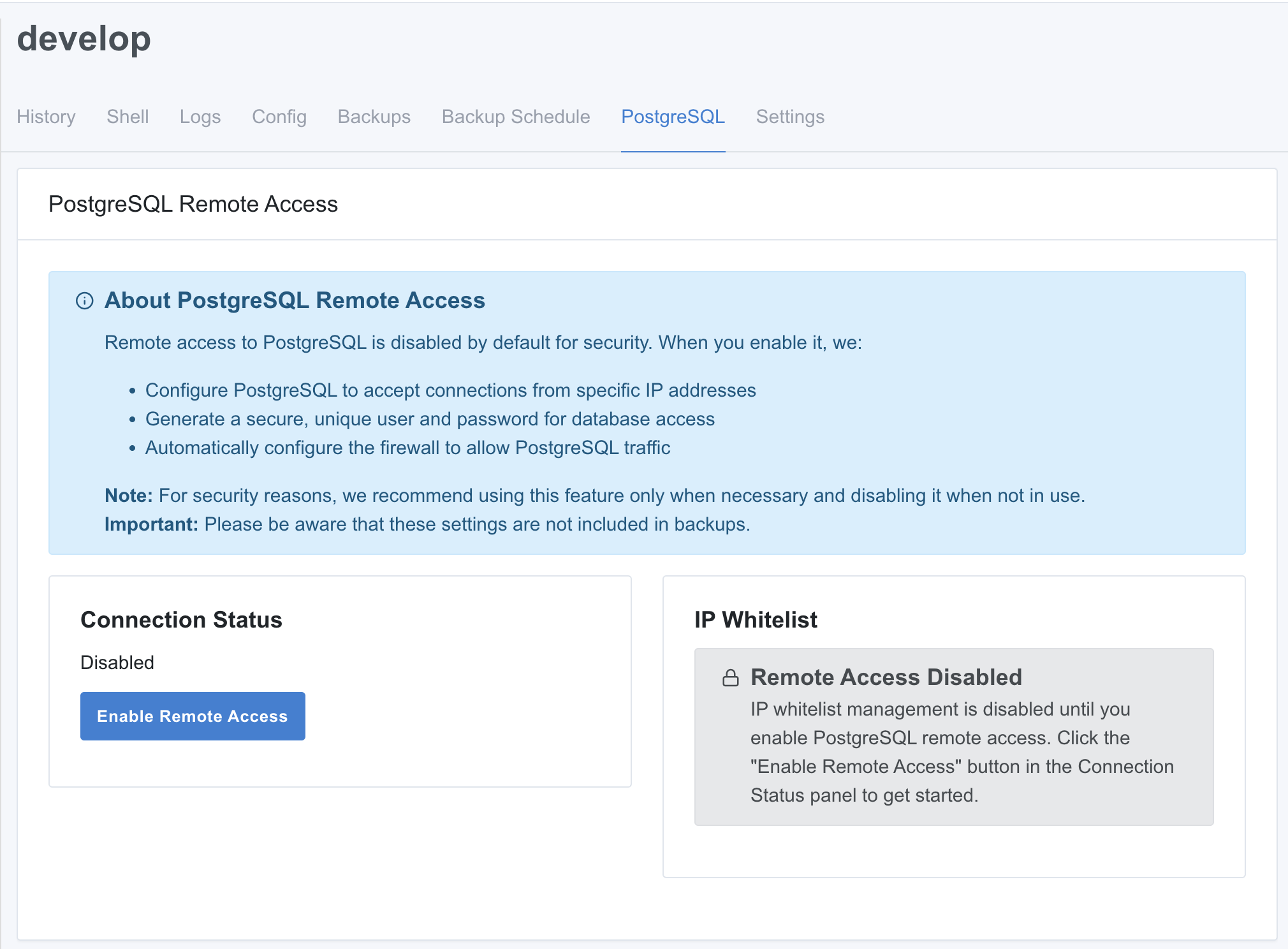
Step 3: Enable Remote Access
Click the “Enable Remote Access” button. This will:- Create a read-only database user
- Configure PostgreSQL to accept remote connections
- Set up firewall rules
Step 4: Add Your IP Address to Whitelist
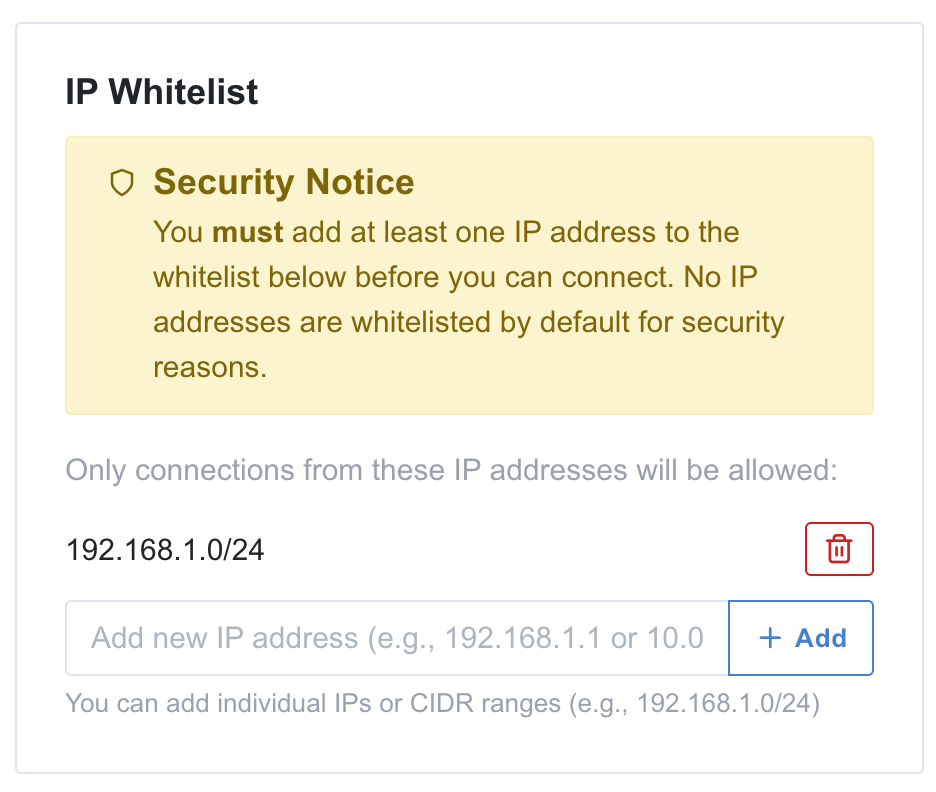
For security, you must whitelist the IP addresses that can connect to your database.- Enter your public IP address or CIDR range (e.g.,
203.0.113.50or192.168.1.0/24) - Click “Add”
- Use your public IP address (the IP your network uses to access the internet)
- No connections are allowed until you add at least one IP address
- You can find your public IP by searching “what is my ip” in Google
0.0.0.0/0 to allow connections from any IP address, but this is strongly discouraged for security reasons.
Step 5: Get Connection Details
Once enabled, you’ll see your connection details:- Host - Your server’s IP address
- Port - PostgreSQL port (default: 5432)
- Database - Your database name
- Username - Read-only user credentials
- Password - Secure password (click eye icon to reveal)
Connecting BI Tools
Use the connection details to connect your BI tool. Most tools support PostgreSQL connections and will ask for:- Host/Server
- Port
- Database name
- Username
- Password
- pgAdmin (recommended for database management)
- Power BI (PostgreSQL connector)
- Tableau (PostgreSQL driver)
- Metabase (native PostgreSQL support)
- Google Looker Studio
- DBeaver
Security Notes
- Remote access is disabled by default for security
- The database user has read-only access (SELECT only)
- Only whitelisted IP addresses can connect
Disabling Remote Access
To disable remote access, click the “Disable Remote Access” button in the PostgreSQL tab.Need Help?
If you have trouble connecting, verify:- Your IP address is whitelisted
- You’re using the server IP (not the domain name)
Next Steps
- Set up automatic backups
- Connect via SSH for advanced access