

Overview
If you want access to Odoo Enterprise features, you need an active Odoo Enterprise license key. You can configure this anytime in your project settings.Prerequisites
- Active Odoo Enterprise subscription from Odoo
- Your Enterprise subscription code
Step 1: Access Project Settings
From your project dashboard, click the “Settings” button to access your project configuration.
Step 2: Navigate to General Settings
In the project settings, go to the “General” tab where you’ll find the Odoo Enterprise configuration section.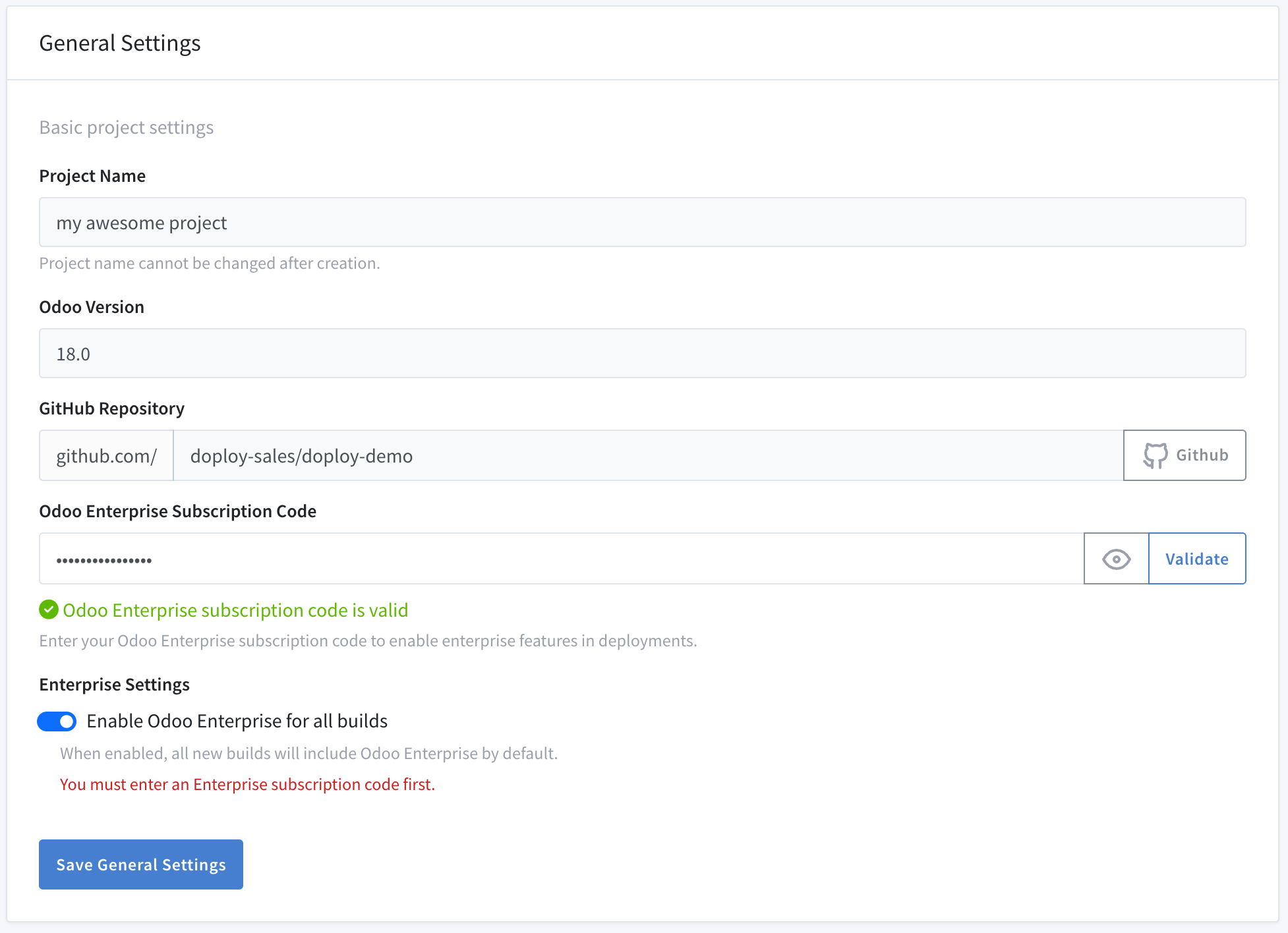
Step 3: Enter Your Enterprise Subscription Code
In the Odoo Enterprise section:- Enter your subscription code - Paste your Odoo Enterprise subscription code in the provided field
- Validate - Click “Validate” to verify your subscription with Odoo
- Enable Enterprise - Once validated, toggle “Enable Odoo Enterprise” to activate Enterprise features for all future builds
What Happens Next
Once Odoo Enterprise is enabled:- All new deployments will include Odoo Enterprise modules
- Existing instances can be upgraded by going to the instance’s settings
- Enterprise modules will be automatically available in your Odoo instance going forward
Enterprise Modules Not Appearing
If Enterprise modules aren’t showing up after enabling:- Make sure you’ve enabled enterprise on pre-existing instances by going to the instance settings
- Contact doploy support
Subscription Expired
If your subscription has expired:- Renew your subscription with Odoo
- Update your subscription code in project settings