> ## Documentation Index
> Fetch the complete documentation index at: https://docs.doploy.io/llms.txt
> Use this file to discover all available pages before exploring further.
# Remote Database Access
> Connect BI tools and external applications to your Odoo database
## Overview
Enable secure remote access to your PostgreSQL database for business intelligence tools like Power BI, Tableau, or Metabase.
**Note:** Remote database access is only available for production and staging instances, not development builds.
## Step 1: Select Your Instance
From your project's deployments page, select the production or staging instance you want to configure.
## Step 2: Navigate to PostgreSQL Tab
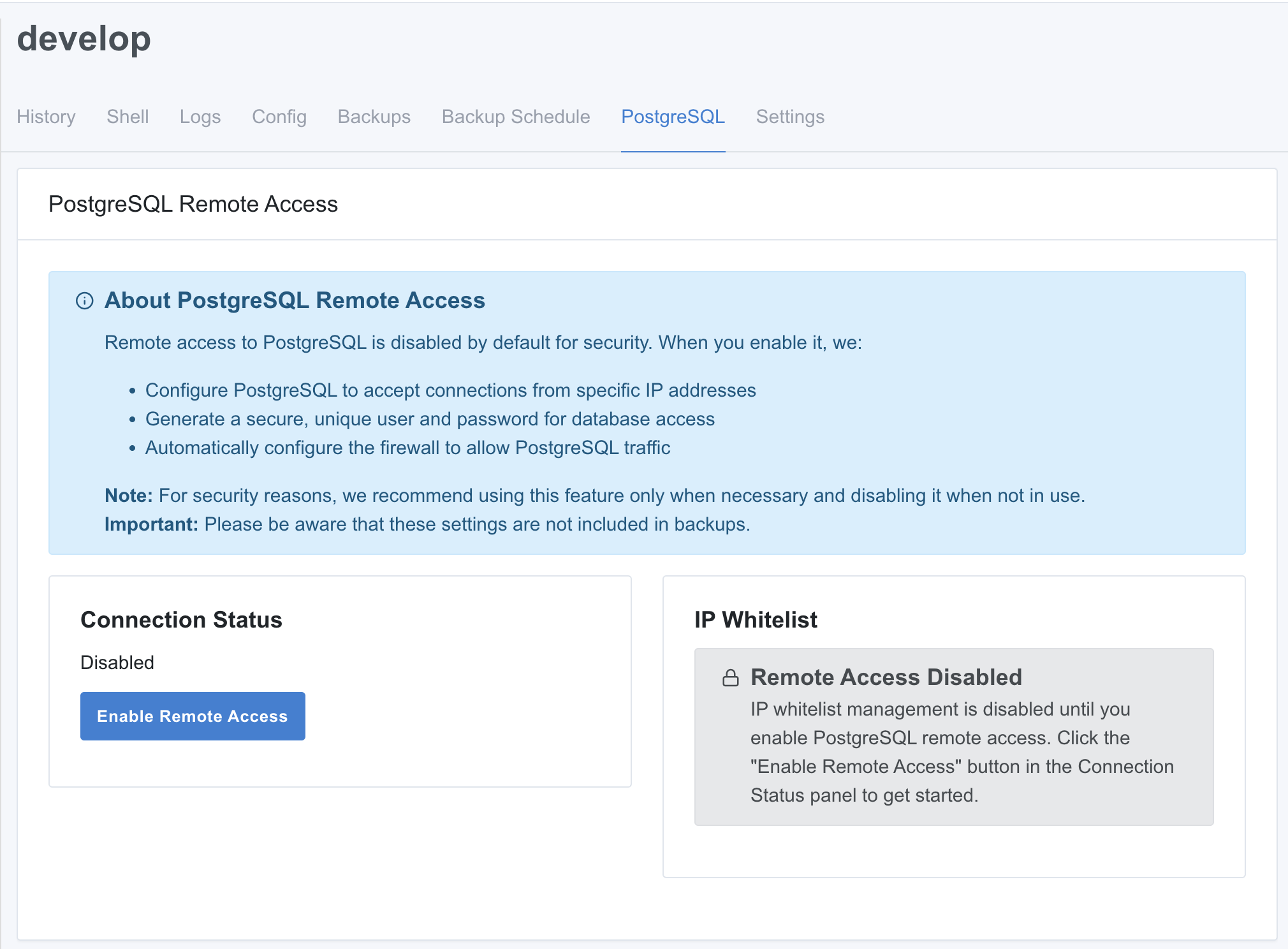
Click on the "PostgreSQL" tab in the instance view.
 ## Step 3: Enable Remote Access
Click the "Enable Remote Access" button. This will:
* Create a read-only database user
* Configure PostgreSQL to accept remote connections
* Set up firewall rules
This process takes 30-60 seconds.
## Step 4: Add Your IP Address to Whitelist
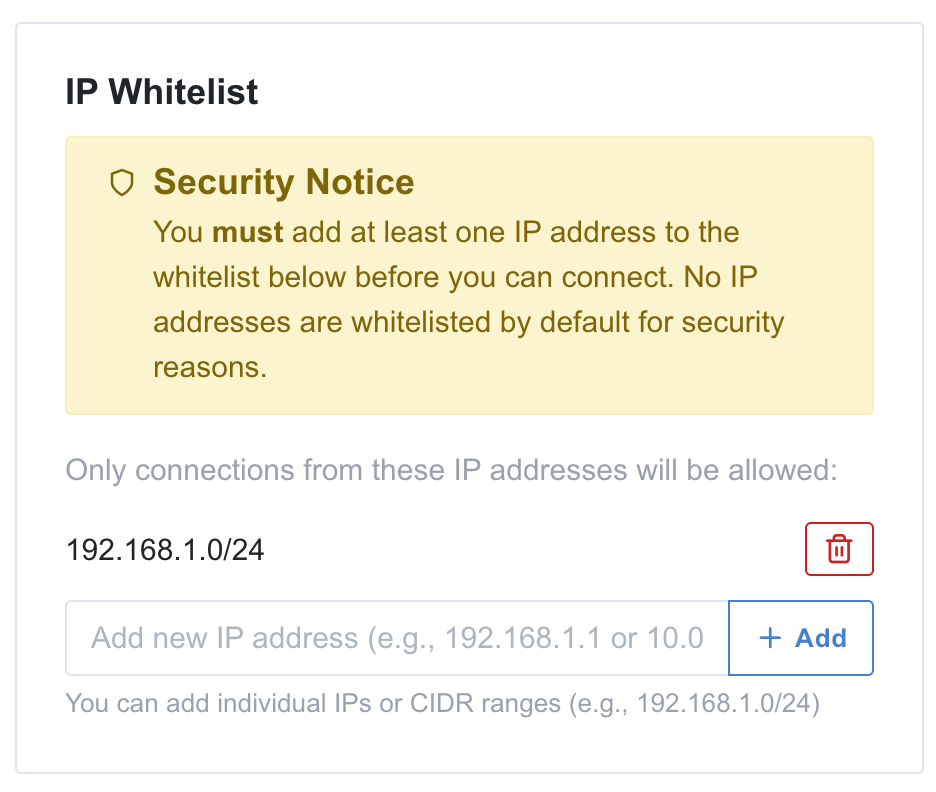
For security, you must whitelist the IP addresses that can connect to your database.
1. Enter your **public IP address** or CIDR range (e.g., `203.0.113.50` or `192.168.1.0/24`)
2. Click "Add"
## Step 3: Enable Remote Access
Click the "Enable Remote Access" button. This will:
* Create a read-only database user
* Configure PostgreSQL to accept remote connections
* Set up firewall rules
This process takes 30-60 seconds.
## Step 4: Add Your IP Address to Whitelist
For security, you must whitelist the IP addresses that can connect to your database.
1. Enter your **public IP address** or CIDR range (e.g., `203.0.113.50` or `192.168.1.0/24`)
2. Click "Add"
 **Important:**
* Use your public IP address (the IP your network uses to access the internet)
* No connections are allowed until you add at least one IP address
* You can find your public IP by searching "what is my ip" in Google
**Allow from anywhere:** You can use `0.0.0.0/0` to allow connections from any IP address, but this is **strongly discouraged** for security reasons.
## Step 5: Get Connection Details
Once enabled, you'll see your connection details:
* **Host** - Your server's IP address
* **Port** - PostgreSQL port (default: 5432)
* **Database** - Your database name
* **Username** - Read-only user credentials
* **Password** - Secure password (click eye icon to reveal)
You can copy the full connection string or individual values.
## Connecting BI Tools
Use the connection details to connect your BI tool. Most tools support PostgreSQL connections and will ask for:
* Host/Server
* Port
* Database name
* Username
* Password
Example tools that work with PostgreSQL:
* **pgAdmin** (recommended for database management)
* Power BI (PostgreSQL connector)
* Tableau (PostgreSQL driver)
* Metabase (native PostgreSQL support)
* Google Looker Studio
* DBeaver
## Security Notes
* Remote access is **disabled by default** for security
* The database user has **read-only** access (SELECT only)
* Only whitelisted IP addresses can connect
## Disabling Remote Access
To disable remote access, click the "Disable Remote Access" button in the PostgreSQL tab.
## Need Help?
If you have trouble connecting, verify:
* Your IP address is whitelisted
* You're using the server IP (not the domain name)
## Next Steps
* [Set up automatic backups](/getting-started/backup-schedule)
* [Connect via SSH](/managing-odoo/ssh-connection) for advanced access
**Important:**
* Use your public IP address (the IP your network uses to access the internet)
* No connections are allowed until you add at least one IP address
* You can find your public IP by searching "what is my ip" in Google
**Allow from anywhere:** You can use `0.0.0.0/0` to allow connections from any IP address, but this is **strongly discouraged** for security reasons.
## Step 5: Get Connection Details
Once enabled, you'll see your connection details:
* **Host** - Your server's IP address
* **Port** - PostgreSQL port (default: 5432)
* **Database** - Your database name
* **Username** - Read-only user credentials
* **Password** - Secure password (click eye icon to reveal)
You can copy the full connection string or individual values.
## Connecting BI Tools
Use the connection details to connect your BI tool. Most tools support PostgreSQL connections and will ask for:
* Host/Server
* Port
* Database name
* Username
* Password
Example tools that work with PostgreSQL:
* **pgAdmin** (recommended for database management)
* Power BI (PostgreSQL connector)
* Tableau (PostgreSQL driver)
* Metabase (native PostgreSQL support)
* Google Looker Studio
* DBeaver
## Security Notes
* Remote access is **disabled by default** for security
* The database user has **read-only** access (SELECT only)
* Only whitelisted IP addresses can connect
## Disabling Remote Access
To disable remote access, click the "Disable Remote Access" button in the PostgreSQL tab.
## Need Help?
If you have trouble connecting, verify:
* Your IP address is whitelisted
* You're using the server IP (not the domain name)
## Next Steps
* [Set up automatic backups](/getting-started/backup-schedule)
* [Connect via SSH](/managing-odoo/ssh-connection) for advanced access